Most of the parameters of the website should not need to be touched but, for the record, these are the details for setting up a completely new site in Gedsite.
There are two sites with genealogical data, with parameters defined in files: En.gsfile (English) and Pt.gsfile (Portuguese). These are maintained as local sites on a desktop and then uploaded to the sites.
Each local site has an input (-i) folder (e.g., En-i) and subfolders with data (e.g., images, articles, biographies). There are also external files (e.g., Nicknames) in external folders which are shared between the two sites. Gedsite then creates output -o files.
Initially, we are importing from TMG by setting Gedsite%>Data%>Database%>Choose Data File and navigating to our TMG file (e.g., C:/UDF2/TMG/GS_22-7-2025/hp__.PJC). The ultimate intent is to replace TMG by Family Historian.
Gedsite Dashboard
The following are components from the Gedsite Dashboard.
Main
Site title:Delete
Build
Enabled: Uncheck.
Compiler
Check Message only (name not divulged)
Data
Database
Choose Data File: Navigate to the current TMG file.
Database%>CHAR Value: UTF-8
Exhibits
Image
Person (primary): Embed
All others: Link
Optimize images: Uncheck (IMPORTANT: If checked, images will be resized and mapping of faces will no longer work.)
People
Exclude Living People: Uncheck
Limit Details for Living People: Uncheck
Show Non-Primary Parents: Check
Person Filter:
To reduce the number of people for testing purposes, click +, select At Least one must pass (Or) and add whatever items you want.
After testing, clear all filter items.
Tags
Omit SortDate-Only Birth Events: Check
Format
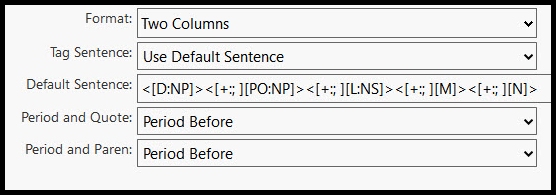
The format of Person Pages is set in Gedsite>Format.
We have selected
Format: Two Columns
Tag Sentence: Use Tag Sentence do NOT Use Default Sentence or the sentence from TMG will not be shown.
Select either English (United Kingdom) or Portuguese (Portugal). More about Languages →
Before making the site, check that the language selected in TMG>File>Language is the same as that in Gedsite (either English (UK) or Portugues).
Page Sizes
(These relate to the size of website pages rather than the size of the screen.)
People per page: 25
Surnames per page: 1000
Surname index: 250
Names per Index Page: 400
Name Index Reserve: 25
Sources per page: 250
DO NOT CHANGE PEOPLE PER PAGE OR SURNAMES PER PAGE because they had been used in calculation of the URL of Person Pages and some might not have been converted to [PageLink:]ID;NAME[:PageLink].
PageSets
Default
Layout 1 Col LC Con Side-Xtra
Header Script: No Header
Chart Page
Layout: 1 Col Chart Con Side-Xtra
Header Script: No Header
Name Index
Header Script: No Header
Menu Script: Include Prev/Next Links: Check
Person Page
Header Script: No Header
Layout Width
Fixed Container Width 1920
All others zero except border image offset: 150
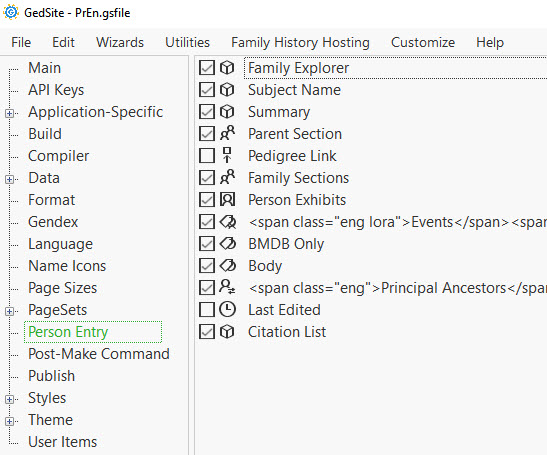
Person Entry
Here we define the main components of the Person Page and place them in the desired order. Components like Body and BMDB Only show Tag Sets (selected groups of tags). For example, Body has a Name Filter set to accept all variations of names except Name-Sort
Publish
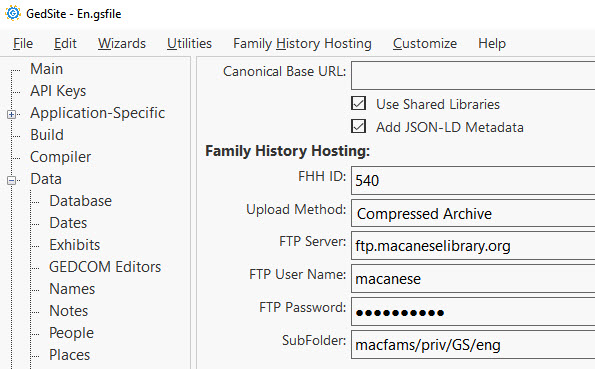
Here we set up the parameters ready for uploading to the website
Enter the password for the Family History Hosting cPanel.
Some data can also be uploaded directly to the site
by FTP. Read about FTP
Styles
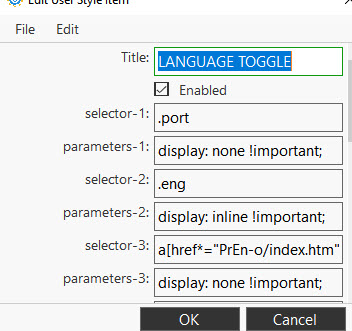
The components in this section set styles (e.g., font sizes, layout, colours) for the website. Of particular relevance are User Styles, where custom styles can be defined. Custom CSS styles are set in tables defining Selector and corresponding Parameters.
Shown in this image is the CSS for language switching.
Theme
This component allows changes to the site theme, for example to the appearance of the MenuBar and Bottom Bar.
See menu styles
menu-border-color: white
menu-background-color: #005A9C
item-text-color: white
item-border-rollover-color: #005A9C
User Items
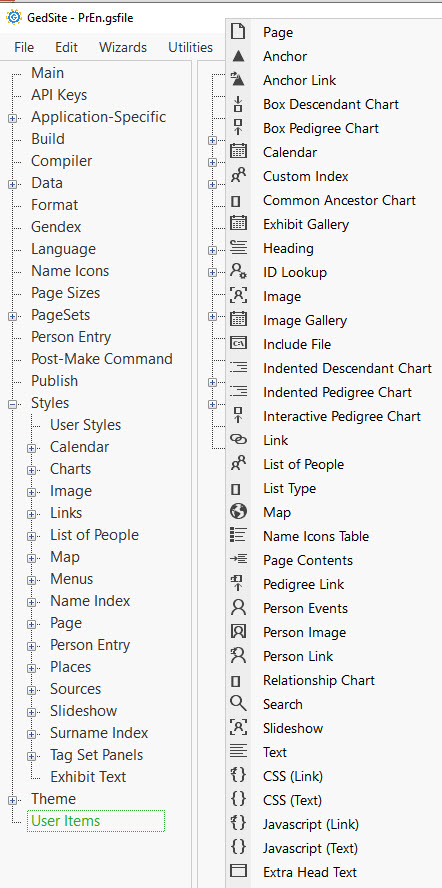
The User Items component (at the bottom of the Gedsite Dashboard) allows the addition of a variety of items to the Person Page, in particular: a new website page, images, links to other pages or sites and Javascript. To enter a new item, click on the green arrow + and select an item.
The items we have used are Page, Link, Text, Image and Javascript Text.
Menus
Menu styles
Menu styles are set through Dashboard>Theme>Menus.
See details
menu-border-color: white
menu-background-color: #005A9C
item-text-color: white
item-border-rollover-color: #005A9C
Logo
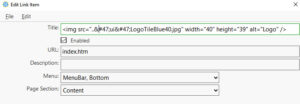
The logo image (LogoTileBlue40.jpg) is added to the Input (-i) folders and has HTML code entered into the MenuBar and the Bottom Bar.
See code
The following code is entered into the Title field:
Language Switch
Code for Language Switch is added to both the
MenuBar and
Bottom Bar.
See code
For Language Switch (to select language),
add this code to the Title field:
and select MenuBar, Bottom
Other Menu items
Other items (Surnames, Given names, Nicknames, Search) are added similarly to the MenuBar and Photos, Descendants, Heritage, Notable People, Contact Us to the Bottom Bar as User ItemsLink Items or as Pages.
Home Page
These are the components of the Home page:
Banner (Image item)
Pairs of items:
Introduction and image
Finding a person and Photos (each with images)
Notables and Descendants (each with images)
Heritage and Comments (each with images)
Snippet for Scroll to Top button
CSS for Lora font family
Javascript for responsive image (for the Home page only)
Javascript for Tooltip
Hidden External Files
Here we set up items that we do not want to appear until they are be invoked on other pages.
Exhibit Gallery items (APPARENTLY NOT NEEDED !!!)
Nobles
National Honours
National Orders
Acknowledgements
Scroll to top
A scroll-to-top button is included in all pages by pasting code into Page Sets>Extra Content. See code