If any changes have been made to Given Names – e.g.,if a new person has been added or if a given name has been corrected – it will be necessary to update the list of Given Names. Software has been prepared for this to be done with a few key strokes.
Extract all the Given Names from TMG as follows:
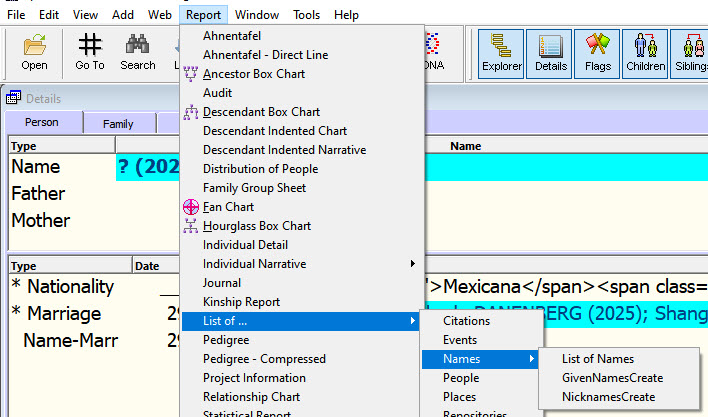
Click on Report>List of Names and from the pull-down list select GivenNamesCreate to see the Report Definition Screen.
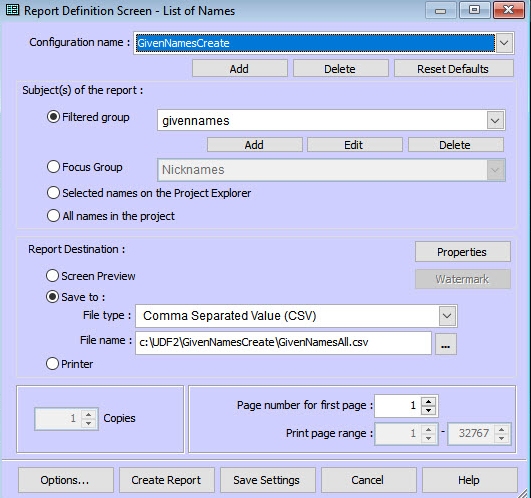
Enter the details as shown and save to C:\UDF2\GivenNamesCreate\GivenNamesAll.csv. Read
why not as .xls file?
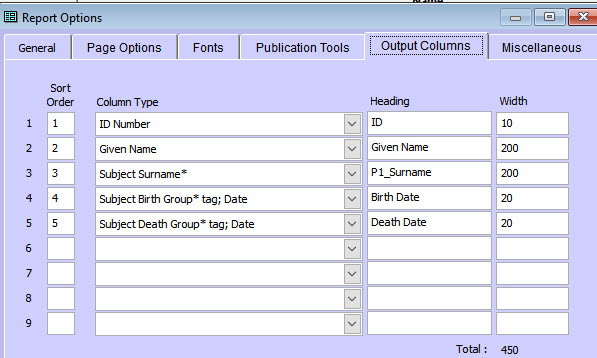
Click on Options>Output Columns, set up details as shown and click on OK.
Click on Create Report.
If asked whether to overwrite a previous report, click Yes.
You will be asked whether to open the new file. Click No.
The list of Given Names downloaded from TMG will be in C:\UDF2\GivenNamesCreate\GivenNamesAll.csv
Process the downloaded file of Given Names
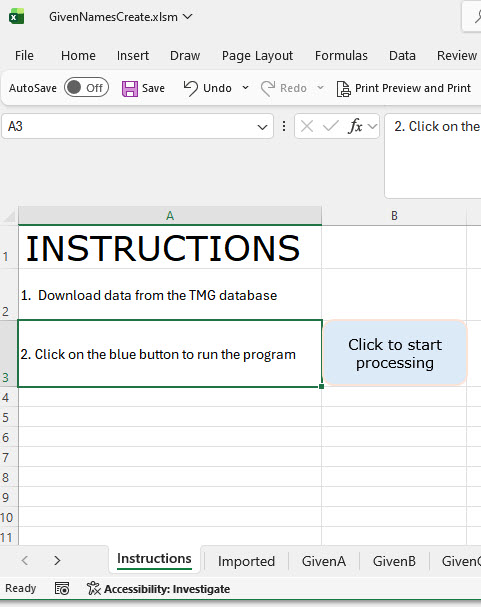
Search for the file called GivenNamesCreate.xlsm. It should be in C:\UDF2\GivenNames_Create. Open it.
On the bottom tab, click on the Instructions worksheet and then on the blue button.
You will be taken to C:\UDF2\GivenNamesCreate and asked to select the source file; select GivenNamesAll.csv.
You will then be asked where to export the results; navigate to the folder C:\UDF2\GivenFiles.
The software does all the work to create the HTML coding. The results will be in the folder Nicknames.htm which should be in the folder C:\UDF2\GivenFiles. You need do nothing else; however, for the record, the coding to do this has been placed in a file. See details.
Lorem ipsum dolor sit amet, consectetur adipiscing elit. Ut elit tellus, luctus nec ullamcorper mattis, pulvinar dapibus leo.